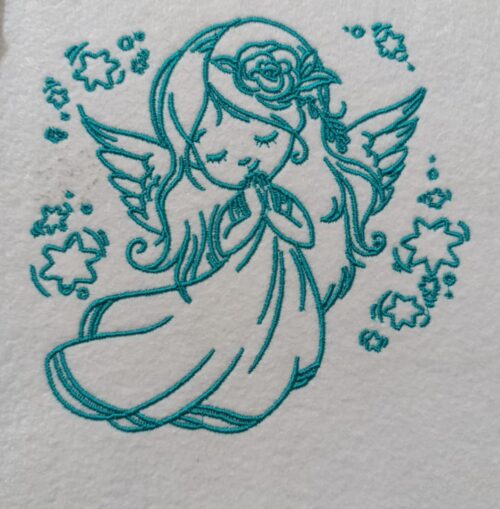
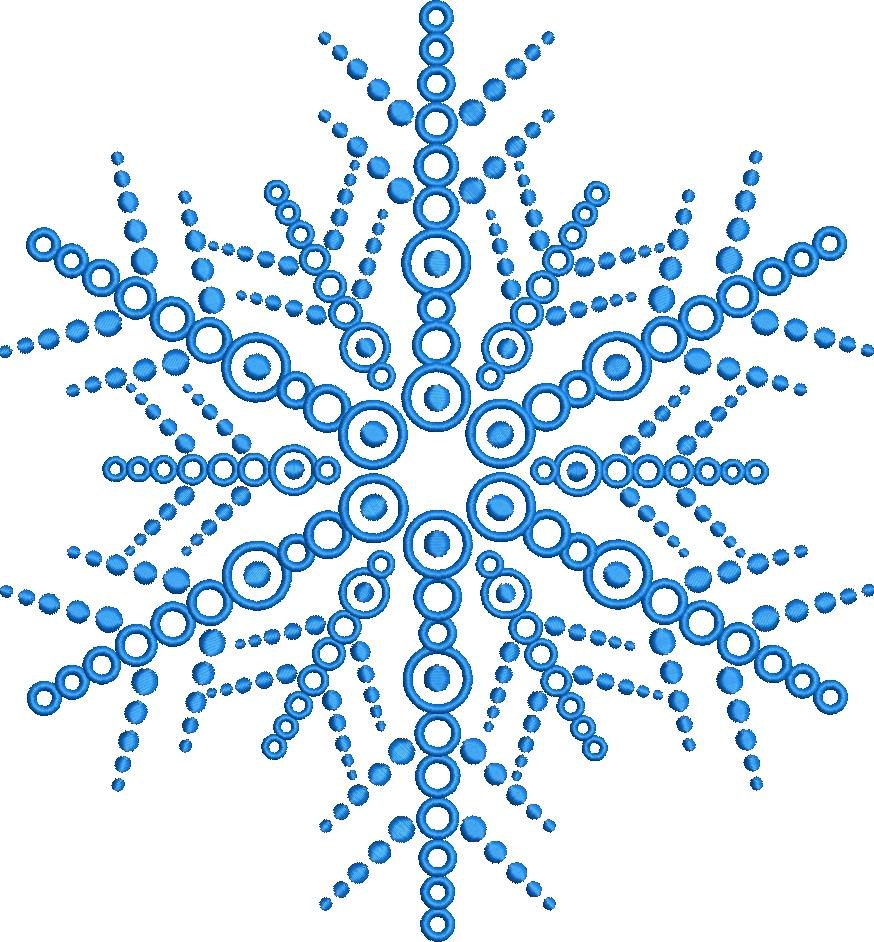

Snowflake Burst of Winter Joy Embroidery
💡 Where it can be embroidered
- Winter sweaters or cardigans for a cozy feel.
- Decorative holiday towels for your guest bathroom.
- Quilted throw pillows to add seasonal cheer.
- Festive tote bags for gift-giving or shopping trips.
At a Glance
Size & stitch count
| # | Size (in) | Size (mm) | Stitches | Trims |
|---|---|---|---|---|
| 1 | 3.8 × 3.5 | 97 × 89 | 18,653 | 41 |
| 2 | 4.5 × 4.8 | 114 × 122 | 22,735 | 41 |
| 3 | 6.3 × 6.8 | 160 × 173 | 29,688 | 67 |
| 4 | 9.1 × 9.8 | 231 × 249 | 40,940 | 194 |
Unique Colors
Own a different thread? Pick up to 3 brands and the chart will show their codes alongside Madeira Rayon.
Codes marked ≈ have no published equivalent and use the closest colour. Always test a sample before stitching.
Color Change chart
| # | Madeira Rayon | Color | Color Name |
|---|---|---|---|
| 1 | 1000 | Emerald Black |
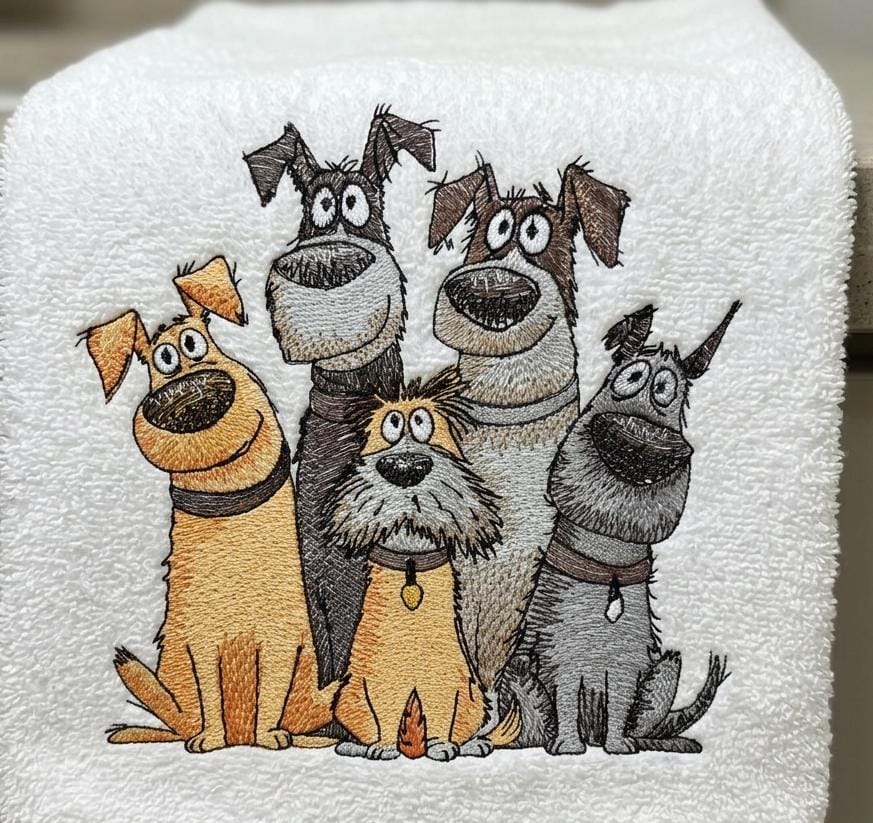
Tested this design on a towel and it turned out great. Love the design quality.
Goofy Dogs Squad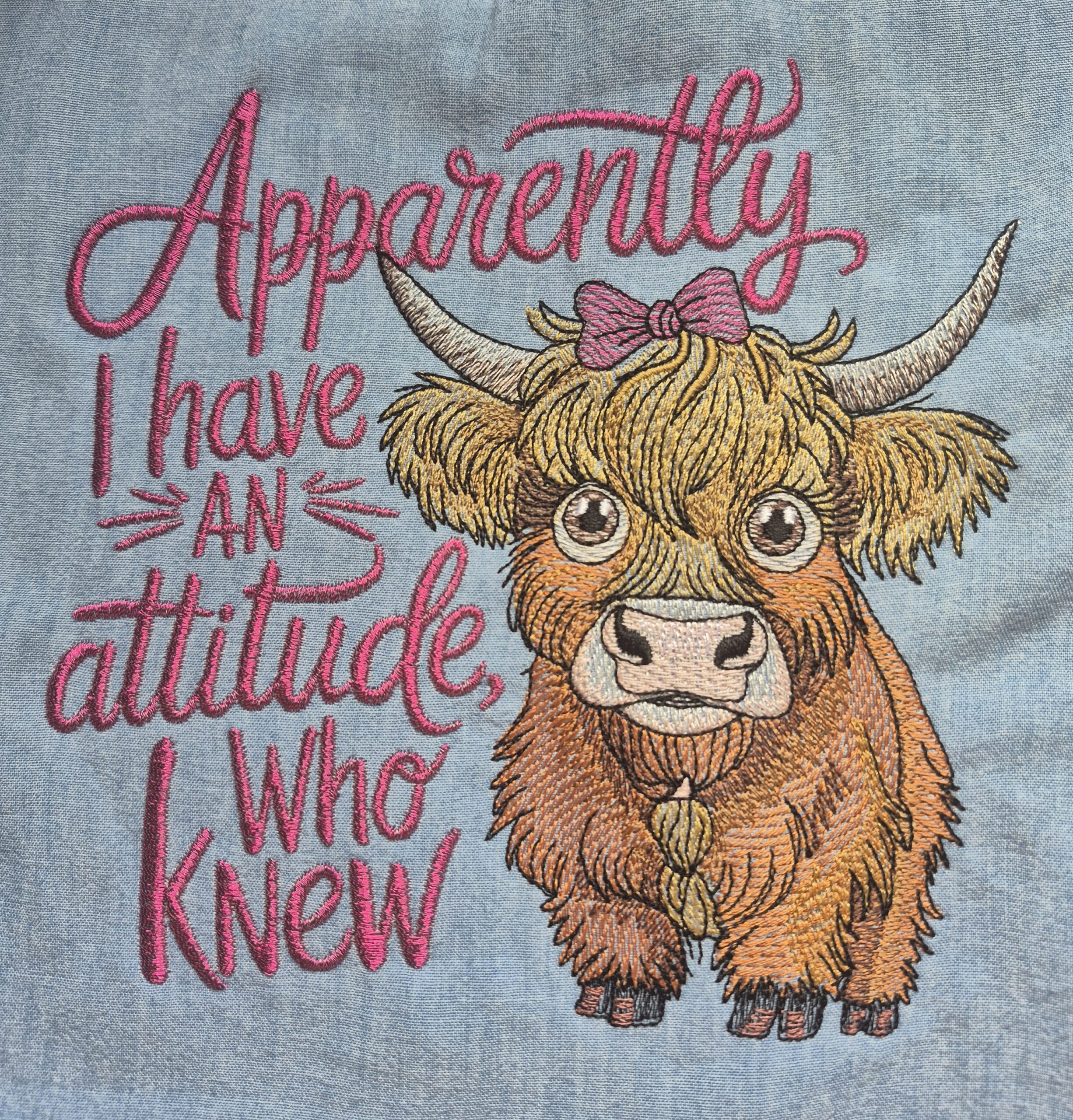
I love, love, love this design, its such a pleasure to sew it out. I changed the colour of the writing and matched the bow.
Attitude Highland Cow Funny Saying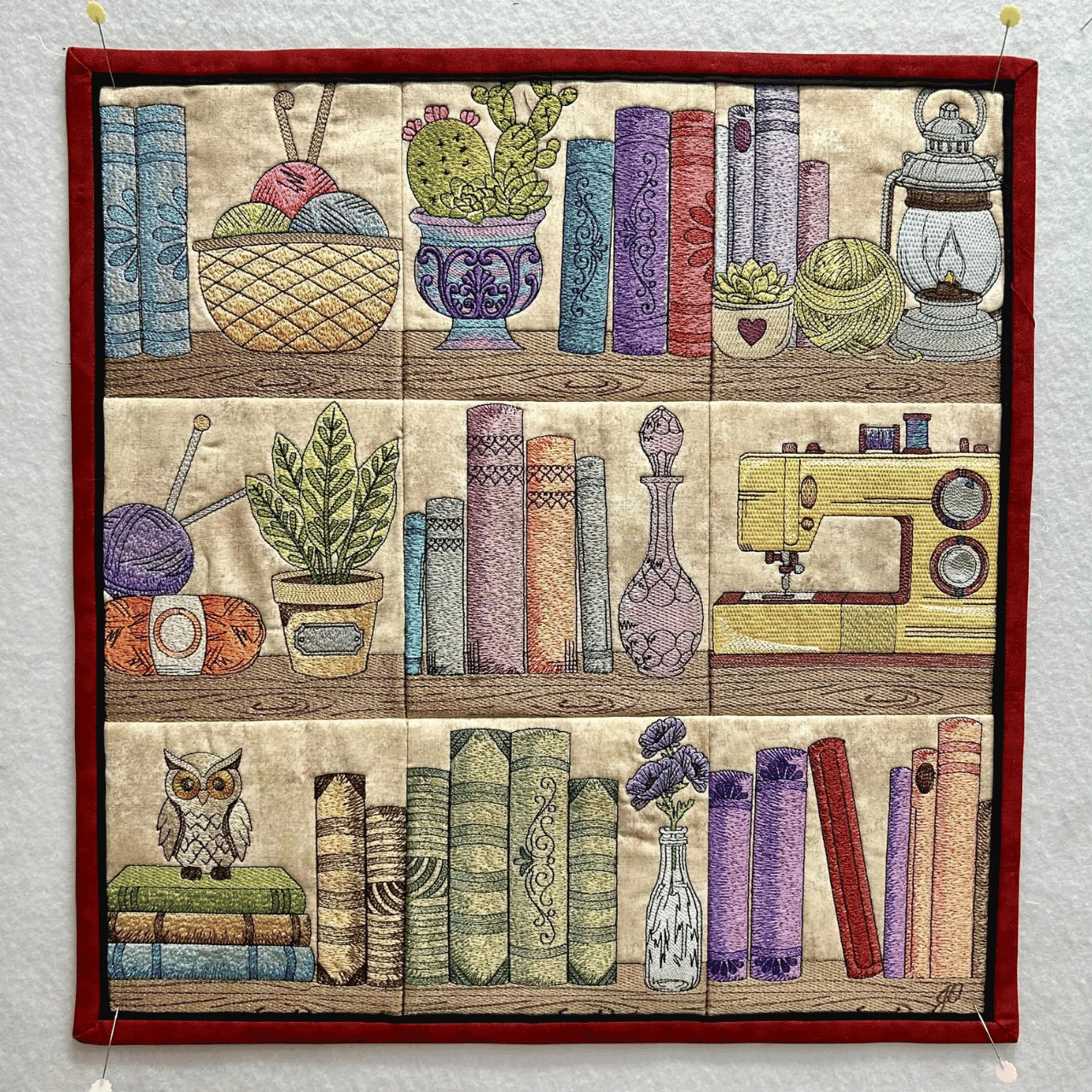
The Cozy Bookshelf Panel is amazing. Love the quality. Made few changes and it turned out great.
Cozy Bookshelf Panel Embroidery Design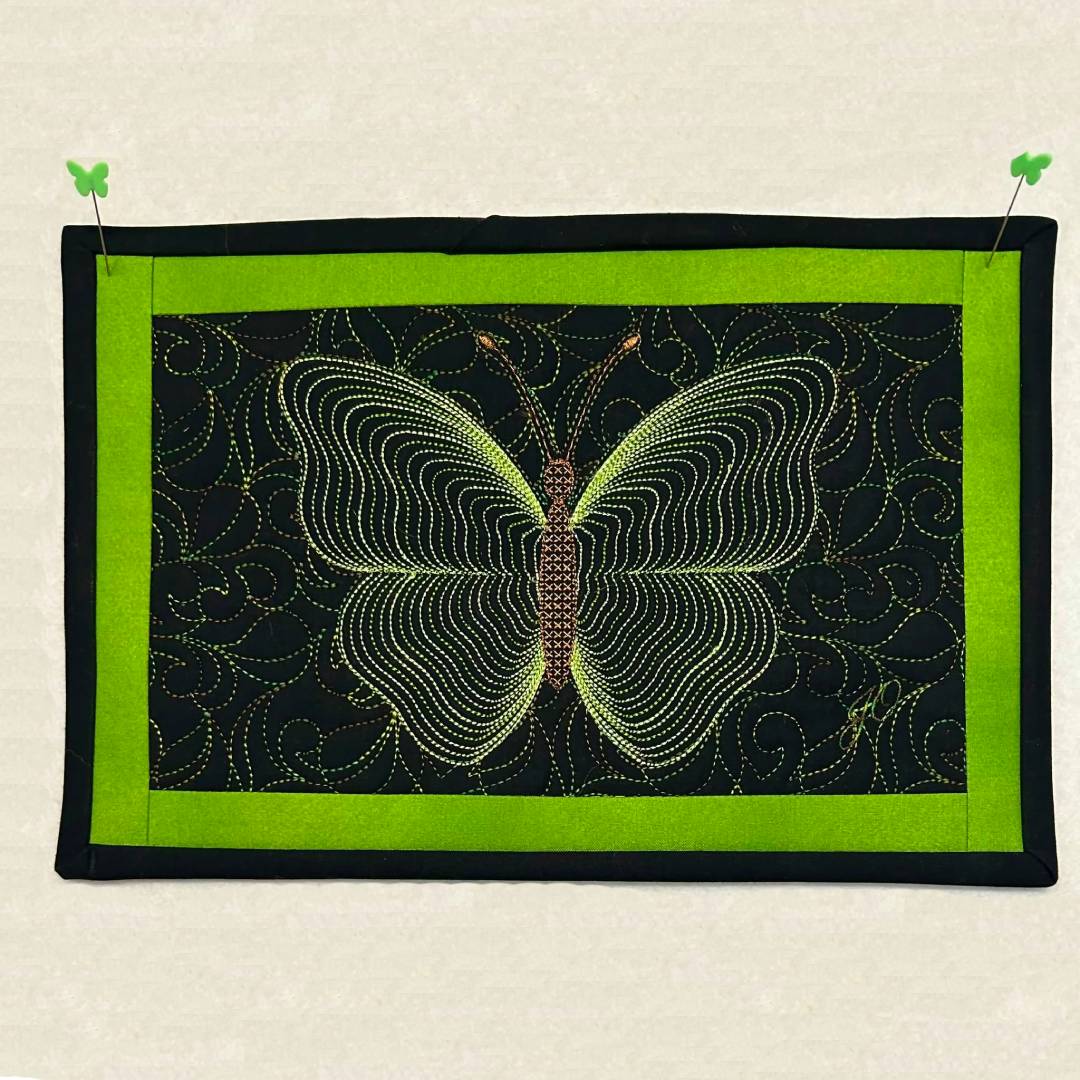
Love this beautiful design. Really enjoyed embroidering it.
Gold Teal Blending Butterfly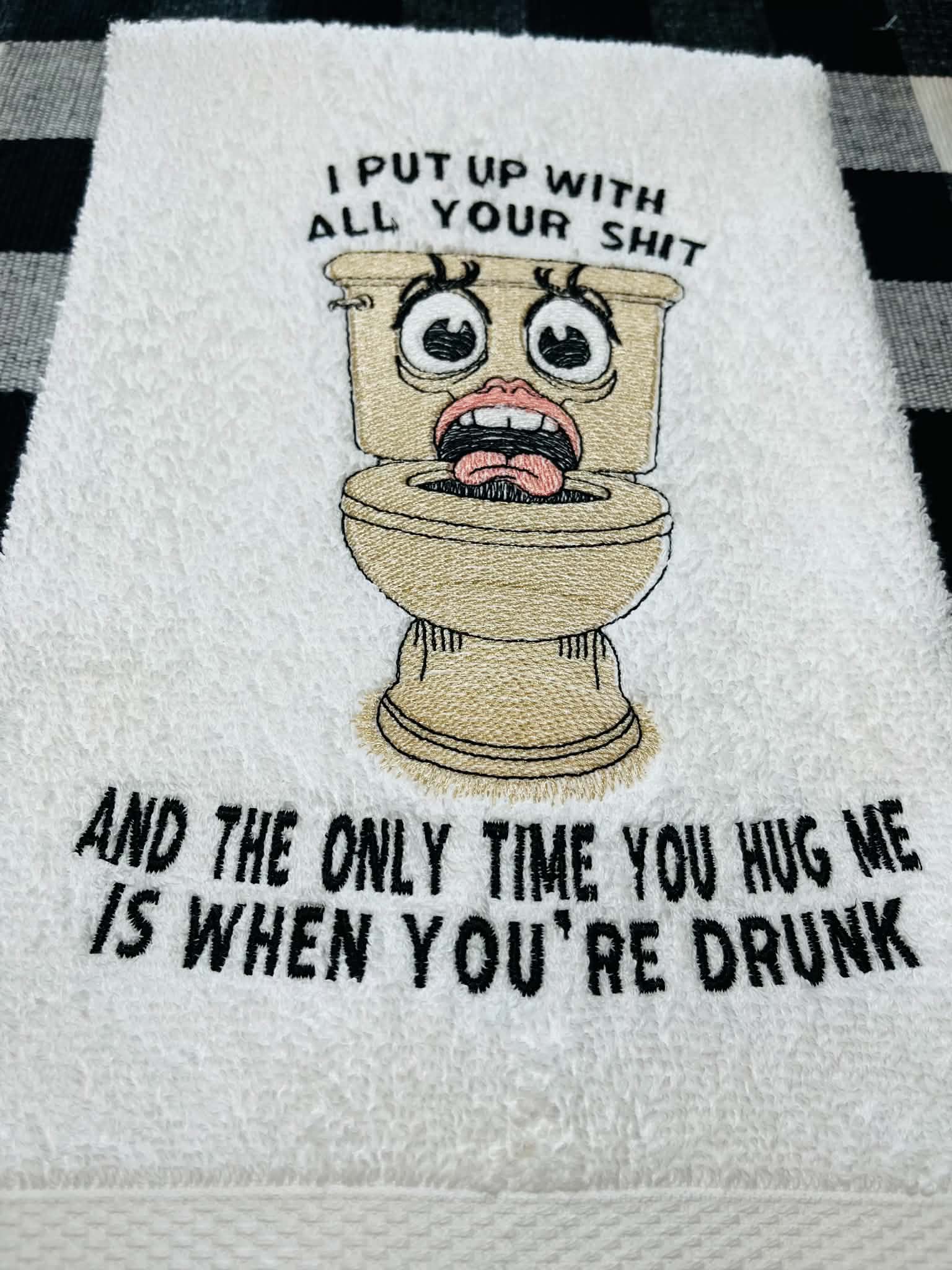
This is great for the guest bathroom. Easy, low stitch.
I Put Up With All Your Mess Quote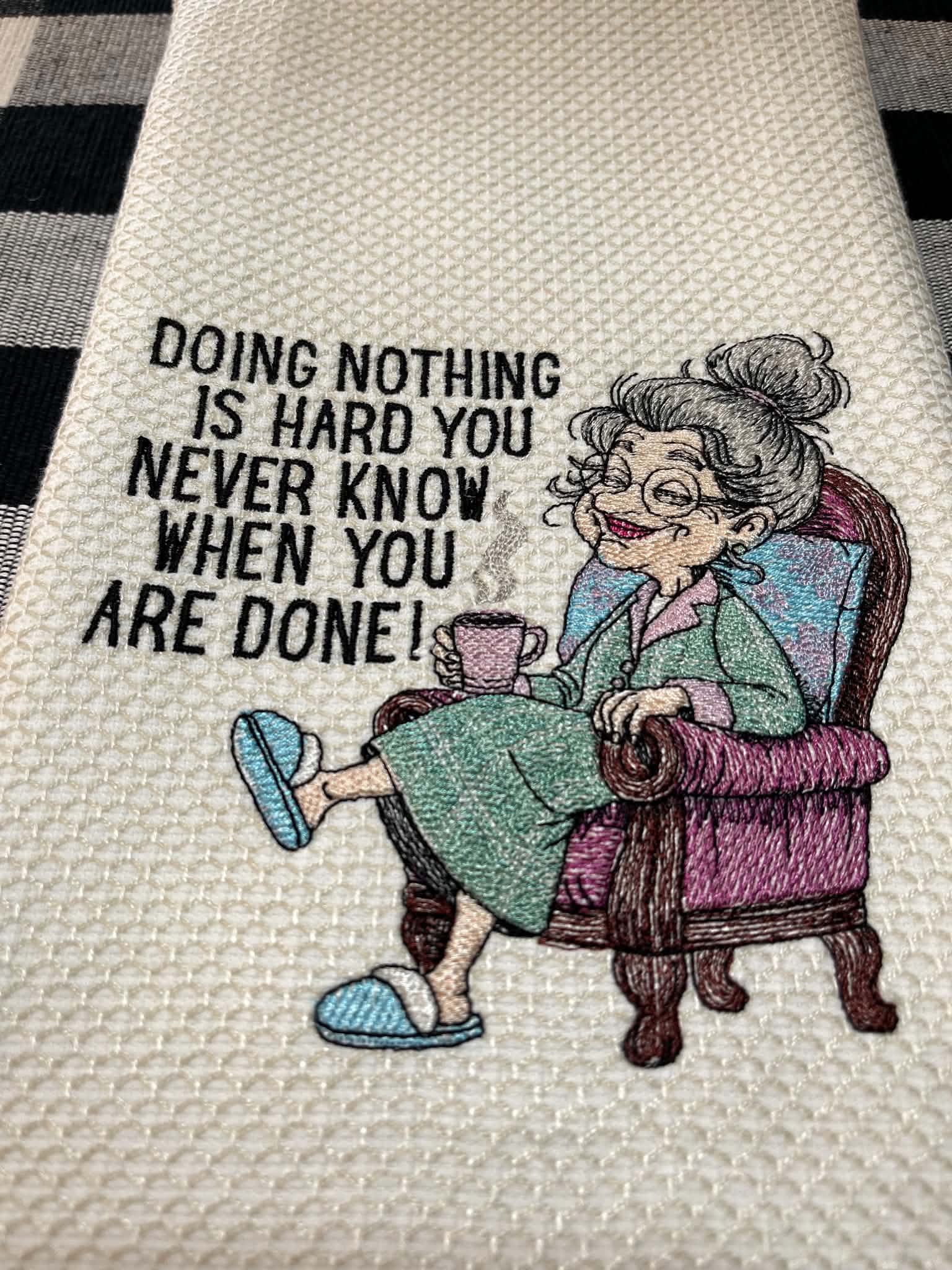
Love this design......not too many stitches which is what I look for.She is just fun and turned out great.
Cozy Grandma With CoffeeReally cute and comes out so nice. Making shirts for friends for Christmas.
Christmas Cats TreeDesign is really cute and embroiderys nice. Too many jump stitches but makes a nice Christmas shirt for friends.
Christmas Cats With Lights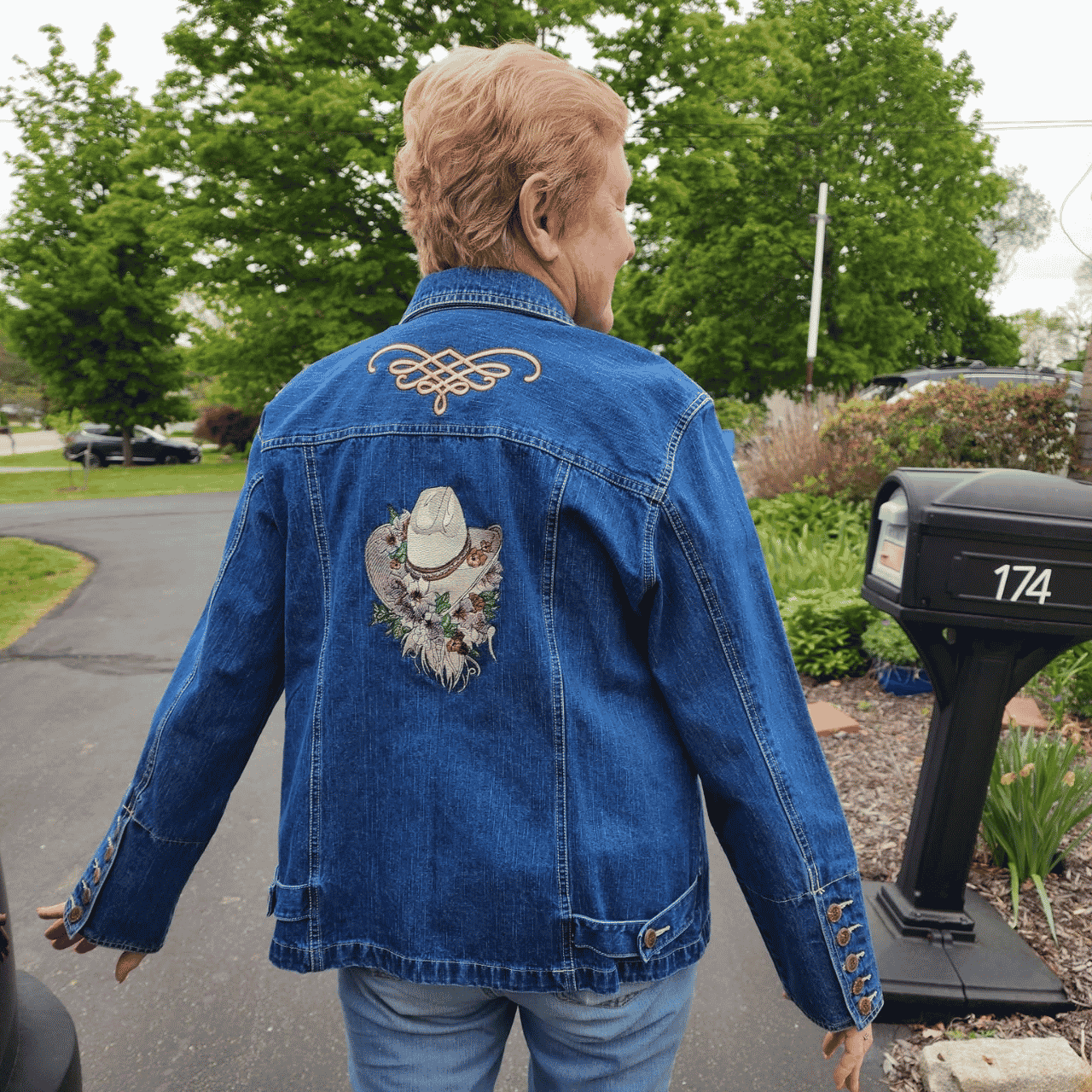
I absolutely loved the cowboy hat. I had a craft show coming up at a horse rescue farm. This looked like the perfect time to put it on…
Floral Cowboy Hat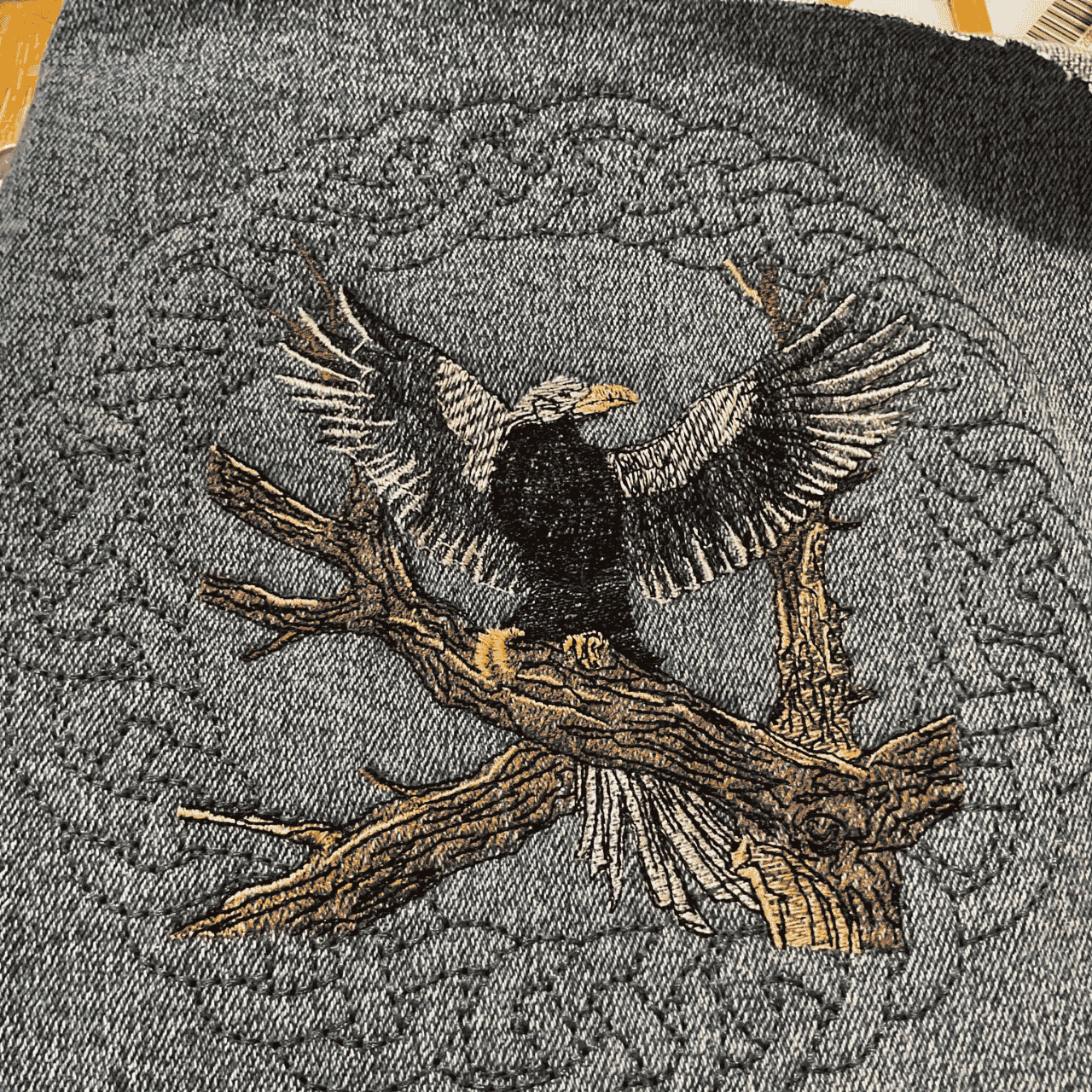
My eagle turned out great, next time I need to use a better background color. I thought it would pop out more on a denim jacket. Great quality…
Majestic Eagle With Open Wings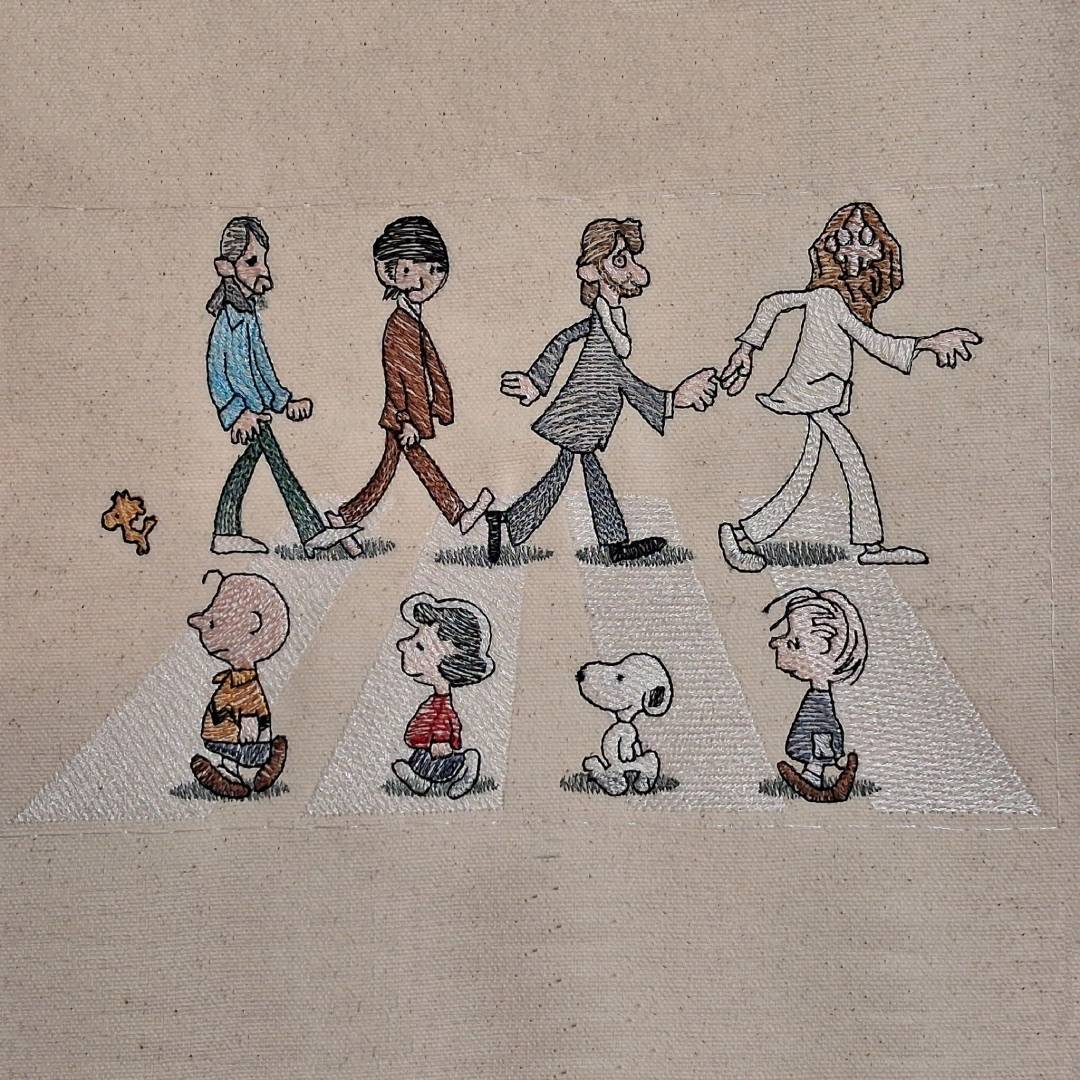
Finally got around to try this one. Stitched out perfectly. Love the design.
Nosey Dog And Friends Crossing Road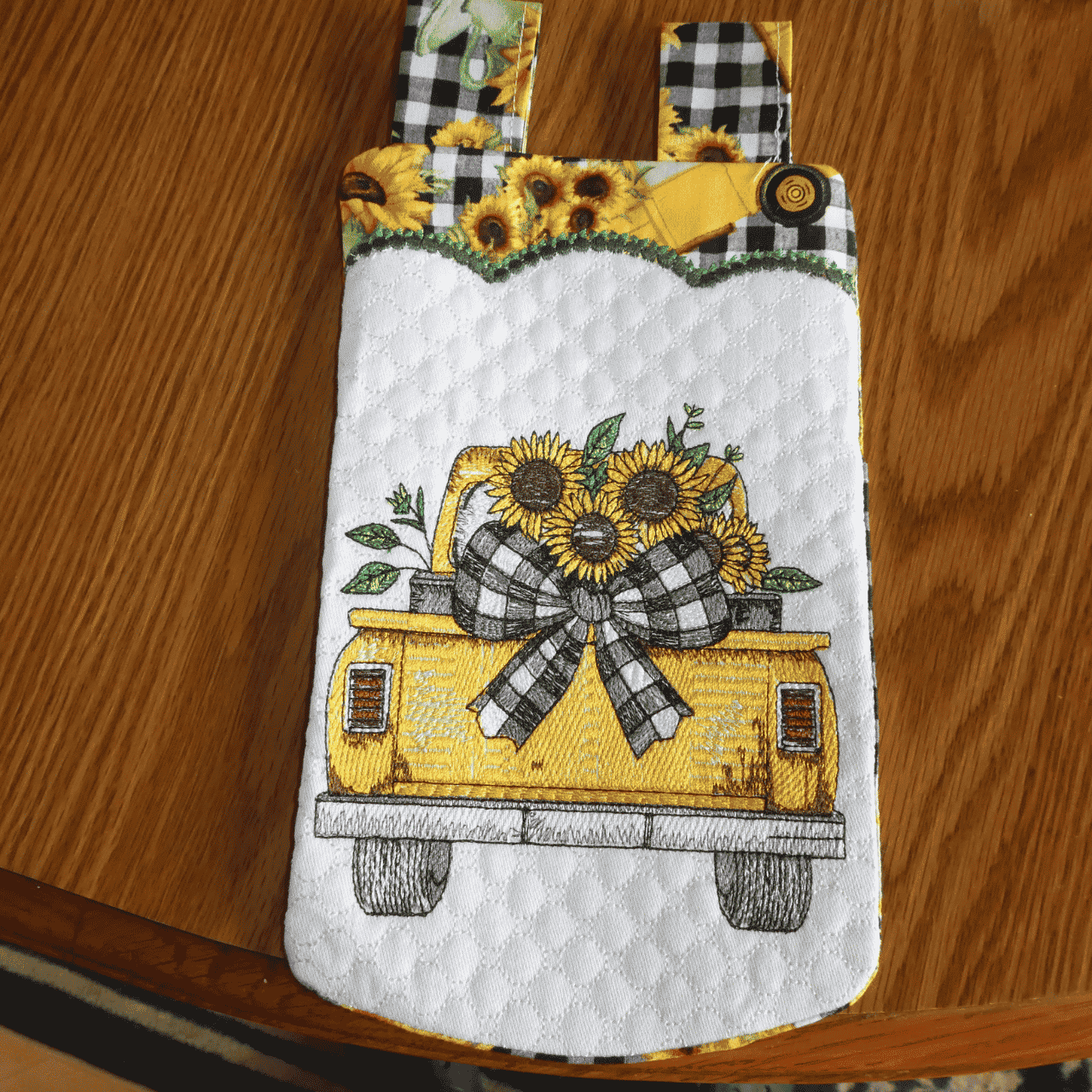
Had fun stitching this out. Love the quality of design. Stitched out perfectly.
Sunflower Retro TruckAwesome! Used this on a gift bag - the gift was a drone so the design was perfect. Stitched out perfectly. A winner.
Sassy Sparkles Donkey Quote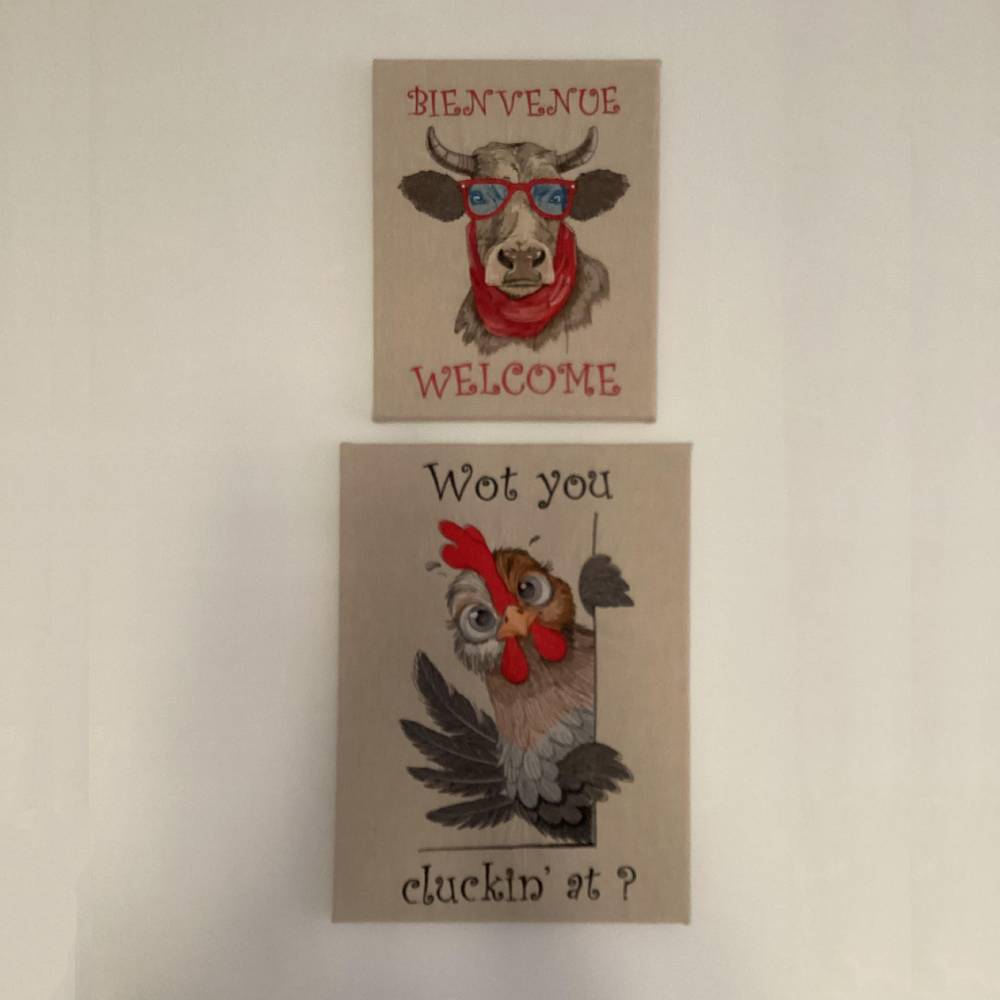
Love this design. We’re renovating at the moment, we wanted something different, I did these for opposite the front door.
Peeking Farm Chicken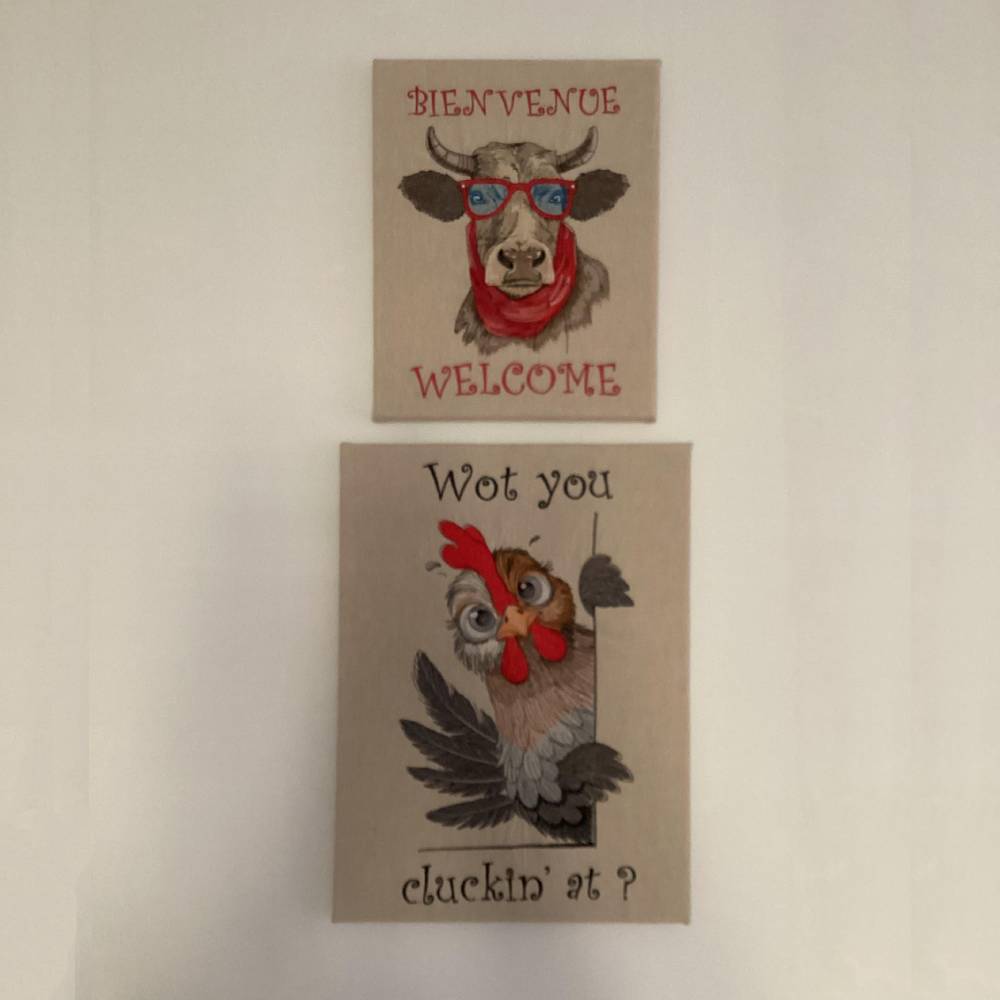
We’re renovating at the moment, we wanted something different, I did these for opposite the front door. Great design.
Funny Cow With Sunglasses
Write a review
Only customers who have purchased this design can leave a review.
Q1: What kind of needle works best for my Snowflake design?
Pro Tip: For your Snowflake design, a standard 75/11 or 80/12 universal needle is usually ideal. If you're using delicate fabrics or metallic threads, opt for a specialized needle to ensure smooth stitching.
Q2: How can I download all versions of my Snowflake design at once?
Quick Note: Head to the specific design page for your Snowflake. Click the blue "DOWNLOAD HERE" button to grab the complete "Value Pack" ZIP file, containing all sizes and formats.
Q3: When embroidering the Snowflake, what do 'Trims' and 'Stops' mean?
Yes, dear! 'Trims' refers to how often your machine snips the thread in between sections of the Snowflake design. 'Stops' are when your machine pauses, indicating it's time for you to change to a new thread color.
Q4: Where can I find the Color Chart for my Snowflake design?
Pro Tip: Your Snowflake color chart is easy to find! Look inside the ZIP file as a PDF, in your account's Download Section (select "PDF" from the dropdown), or right on the Snowflake's design page under its description.
Q5: Can I download a single file format for my Snowflake design?
Yes, dear! Navigate to your "Account Downloads" section. Next to your Snowflake design, click "DOWNLOAD FORMAT" and choose the specific file type (like .PES or .JEF) you need from the menu.